
Contents
|
|

Introduction
Most performance, holdings, and transaction dynamic reports in Advisor View can be shared to your client via the client portal. To share the reports, you first configure the report page and then add it to the client view.
Just like all dynamic reports in Advisor View, the client portal reports are point-in-time snapshots of your portfolio holdings and performance as of the last sync, which typically occurs each weekday morning.
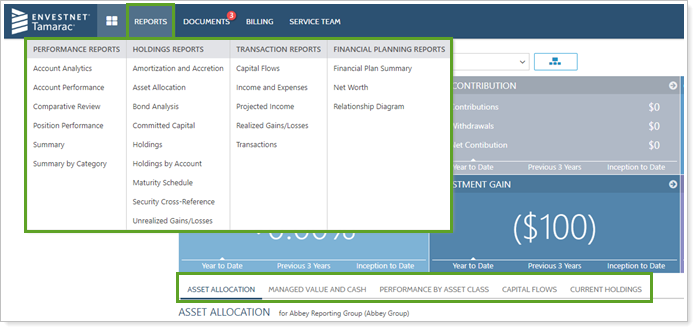
You can access these reports in client portals on the Reports menu or on the dashboard (when they're added as dashboard tabs).
NOTE
When configuring reports, all settings work the same as they do in your version of Advisor View. For example, the setting for Display changes to benchmark assignments will work the same on your version of Advisor View as it will in the end client portal.

Create a Report for a Client View
To create a report for a client view, follow these steps:
-
On the Client Reporting menu, click Client Views.
-
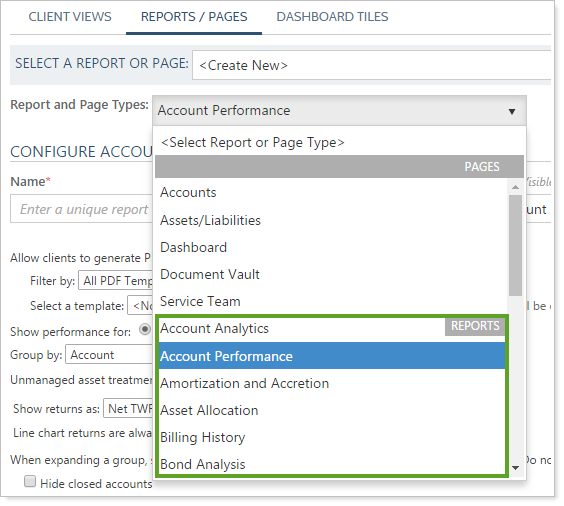
On the Reports / Pages tab, click a report in the Report and Page Types list.
-
Type a Name and Title for the report. To learn more about the Name and Title fields, see Report Name.
-
Complete the settings for the report. When configuring the reports, all settings work the same as they do in your version of Advisor View. For example, the setting for Display changes to benchmark assignments will work the same on your version of Advisor View as it will in the end client portal.
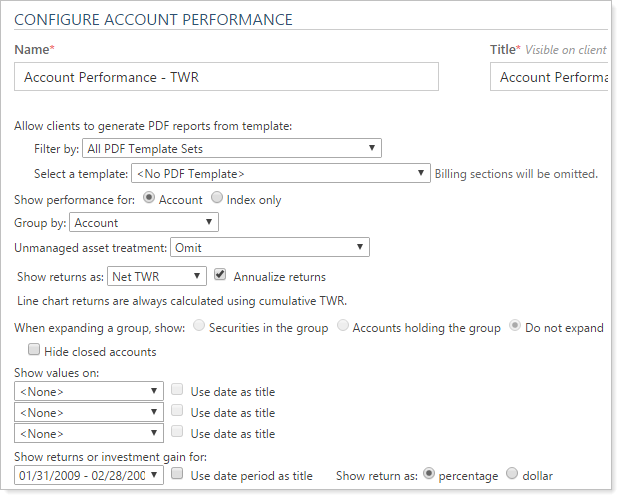
For details on each setting, visit the Help topic for the full report version.
Performance Reports
Holdings Reports
Transaction Reports
Financial Planning Reports
|
|
-
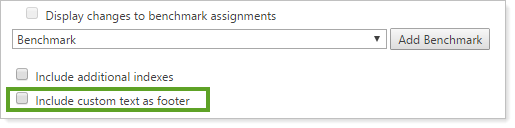
If you want to add custom footer text at the bottom of the report, select the Include custom text as footer check box. For details, visit Include Custom Footers for Disclaimers or Footnotes on Client Portals.
-
Click Save.
Delete a Report Page
To delete a report page, follow these steps:
-
On the Client Reporting menu, click Client Views.
-
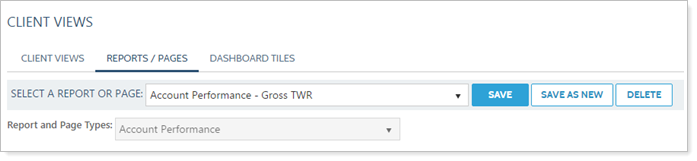
On the Reports / Pages tab, click the report you want to delete in the Report and Page Types list.
-
Click Delete. If the Delete button does not appear, the report cannot be deleted because it is either in use or it is a default report.
Copy a Report (Save As New)
To make a copy of a report, follow these steps:
-
On the Client Reporting menu, click Client Views.
-
On the Reports / Pages tab, click the report you want to copy in the Report and Page Types list.
-
In the Name box, type a name for the new report and then click Save As New.
Assign a Report to a Client View
For details on assigning reports to your client views, visit Create a Client View.
Show Closed Accounts on Client Portals
If a client account closes partway through a reporting period, you may want to show the account on the client portal until after the reporting period ends, to match performance.
To show closed accounts on client portals:
-
Click Client Reporting then click Client Views to navigate to the Client Views page.
-
Click the Reports/Pages tab.
-
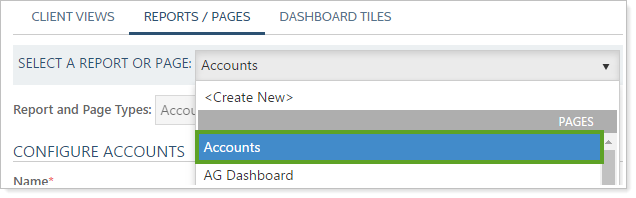
Under Select a Report or Page List, click Accounts.
-
Under Show closed accounts menu, select the appropriate option. These options determine when closed accounts will appear in the client portal.
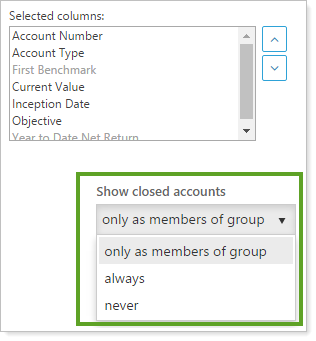
Setting When Closed Accounts Appear Only as members of group Closed accounts will only appear in the client portal accounts page when they are members of a group, unless you expand the group. Always Closed accounts will always appear on the client portal accounts page. Never Closed accounts will never appear on the client portal accounts page. -
Click Save.