
Contents
|
|

Reset a Password for Your Client
When your clients need their passwords reset, you can quickly and efficiently reset it through the client's Client Portal panel, or from the Clients/Client Portals page using multi-edit.
For more information about client passwords and security, see Client Portal Security.

Resend Password Link for One Client
If you are already in the client record, you can handle password-related tasks from the individual client's Client Portals panel.
To resend a password activation email or reset a password for an individual client:
-
Click Clients/Client Portals on the Accounts menu.
-
Click the name of the client you want to enable client portal access for.
-
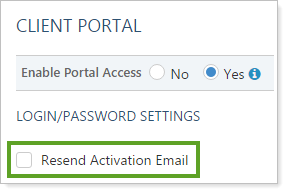
Click the Client Portal tab, then select Resend Activation Email. The name of the check box varies depending on the client's portal status, as does the email sent.
Note
This smart system sends a different automated email depending on the portal status.
Status Message Sent Inactive No email sent. To set up multiple clients with a portal initially, see Activate Multiple New Client Portals with Multi-Edit in Client Portal Security. Pending Advisor View sends the client email address on record a new activation email. Active Advisor View sends the client email address on record a password reset email. For more information about automated emails and email templates, see Customize the Automated E-mail Messages that Advisor View Sends.
-
Click Save. When this change is saved, Advisor View sends the client an email with a link to the Set Password page. This link remains active for 72 hours.
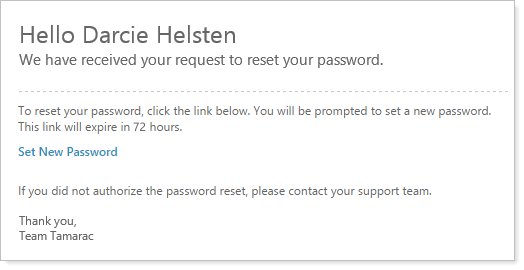
If your client doesn't click the link within 72 hours, you can resend the password multiple times. You can track how much longer the link remains active using the Authentication Link Expiration countdown timer.
Note
If your client can't find the automated email generated, you can suggest that the client:
-
Add the automated email address to their safe senders list.
-
Check their email spam folder.
-
-
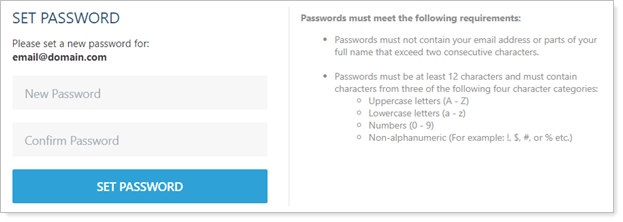
Clicking the Set New Password link opens the Set Password page, where your client creates a new password.
Resend Password Links for Multiple Clients
You can quickly handle password-related tasks directly from the Clients/Client Portals page, without ever having to go into an individual client's record.
To resend a password activation email or to send a password reset email:
-
Click Clients/Client Portals on the Accounts menu.
-
Select the check box next to the client or clients you want to enable client portal access for. You can select one or more clients.
-
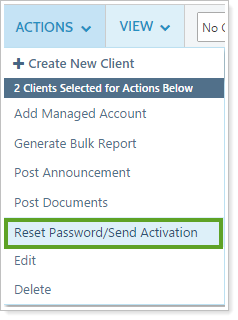
Under Actions, click Reset Password/Send Activation.
-
In the Reset Password/Send Activation window, click Continue. Advisor View generates an activation email or password reset email containing a new link for each client selected.
Note
This smart system sends a different automated email depending on the portal status.
Status Message Sent Inactive No email sent. To set up multiple clients with a portal initially, see Activate a Client Portal (Set up Client Password in Client Portal Security. Pending Advisor View sends the client email address on record a new activation email. Active Advisor View sends the client email address on record a password reset email. For more information about automated emails and email templates, see Customize the Automated E-mail Messages that Advisor View Sends.
How a Client Can Reset His or Her Client Portal Password
You can walk clients through the following steps to reset their own passwords with the following steps:
-
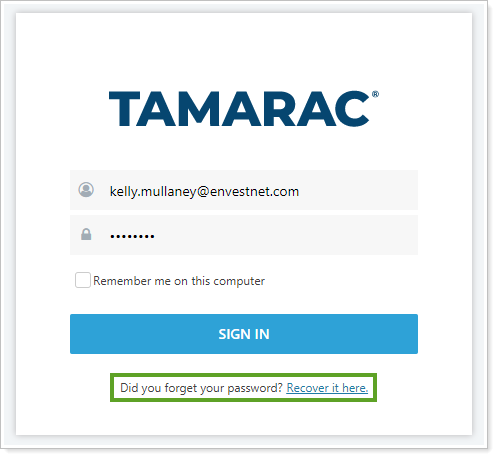
On the sign in page for your client portal, tell the client to click Recover it here.
-
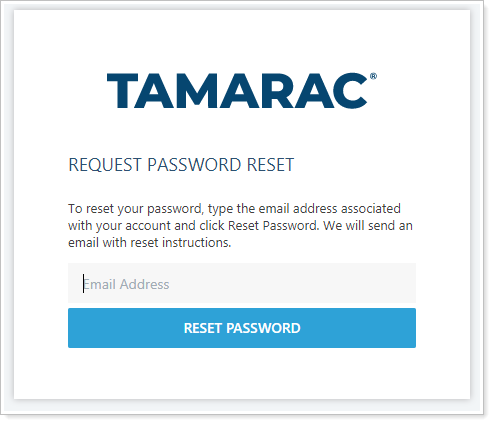
The client is directed to the Request Password Reset page, where he or she enters the same email address that is associated with the client record in Advisor View.
-
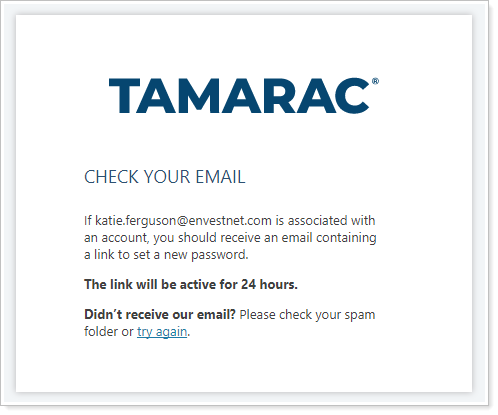
The client is directed to a confirmation page. If the email address entered matches the client record in Advisor View, the client receives an email with further instructions.
-
Advisor View sends the client an email with a link to the Set Password page. This link remains active for 24 hours, after which it deactivates.
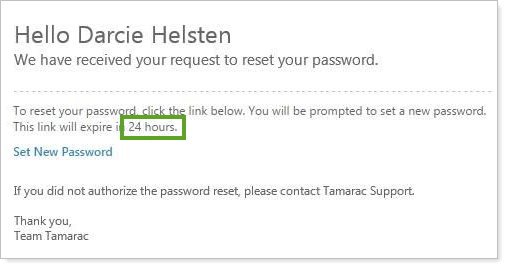
If your client doesn't click the link within 24 hours, he or she can click the Recover it here link on the portal login page to initiate the reset process again.
You can track how much longer the link remains active using the Authentication Link Expiration countdown timer.
-
Clicking the Set New Password link opens the Set Password page, where your client creates a new password.
As an advisor, you can customize the email sent to clients. To learn more, visit Customize the Automated Email Messages that Advisor View Sends.
Client Portal Password Requirements
Passwords must meet the following criteria:
-
Passwords must not contain your email address or parts of your full name that exceed two consecutive characters.
-
Passwords must be a minimum of 12 characters.
-
Passwords and must contain characters from three of the following four categories:
-
Uppercase letters (A - Z)
-
Lowercase letters (a - z)
-
Numbers (0 - 9)
-
Non-alphanumeric ( !, $, #, %, etc. )
-