
Contents
|
|

Introduction
If you use OASYS for trade allocations, you can generate an allocation file in Advisor OMS which you can then export an send to that service for allocation. In order to use OASYS with Advisor OMS, you must first configure your settings. Below are the steps you need to take to configure Advisor Rebalancing to work with OASYS.
For more information on using trade allocations in Advisor OMS, see Allocation Processes in Advisor OMS and Reporting in Advisor OMS.

Set OASYS Broker ID
In order to use OASYS, you will need to establish the OASYS broker ID in Advisor Rebalancing, using these steps.
-
In the Setup menu, choose System Settings.
-
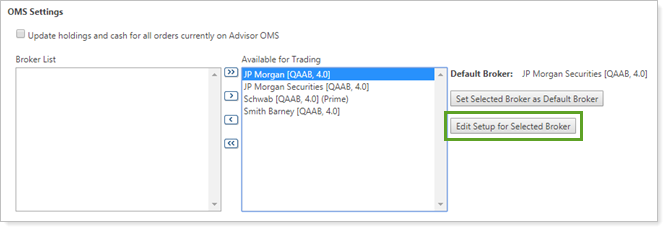
Under OMS Settings, in Available For Trading, select the broker that will be used for OASYS allocations.
-
Click Edit Setup for Selected Broker.
-
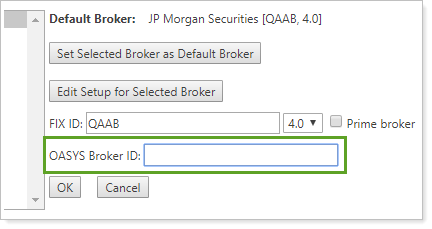
Under OASYS Broker ID, enter the broker ID.
-
Click OK.
-
Click Save.
Note
If you do not know your broker ID is, contact OASYS.
Set Up OASYS Block Record Format
To set up block format in OASYS to work with block format trade allocations in Advisor OMS, follow these steps.
-
Open OASYS.
-
Under File, select Block Record Formats.
-
Under Record Format, configure the columns as shown below:

Field Max Length Field # Record ID 1 1 Operation ID 1 2 Reference Number 11 3 CUSIP 9 4 Price 12 5 Security ID 12 6 Security Type 3 7 Size 13 8 Trade Date 15 9 Transaction Type 2 10 OASYS Broker 8 11 -
Click OK.
Set Up OASYS Allocation Record Format
To set up the allocation record format in OASYS to work with trade allocations in Advisor OMS, follow these steps.
-
Open OASYS.
-
Under File, select Import, then select Allocation Record Formats.
-
Under Record Format, configure the columns as shown below:
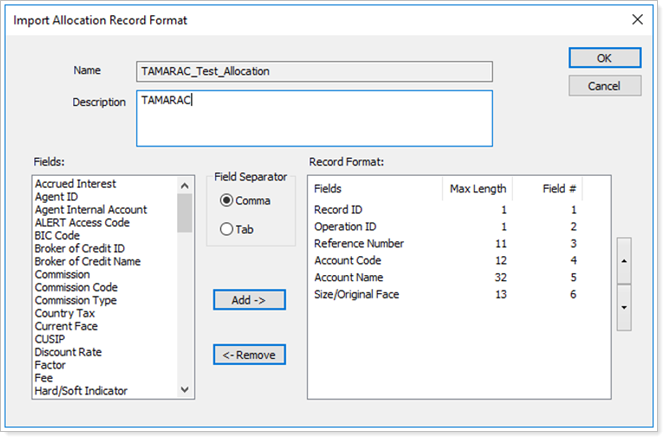
Field Max Length Field # Record ID 1 1 Operation ID 1 2 Reference Number 11 3 Account Code 12 4 Account Name 32 5 Size/Original Face 13 6 -
Click OK.
Set Up OASYS Import Model
To set up the Import Model in OASYS to work with trade allocations in Advisor OMS, follow these steps.
-
Open OASYS.
-
Under File, select Import, then select Import.
-
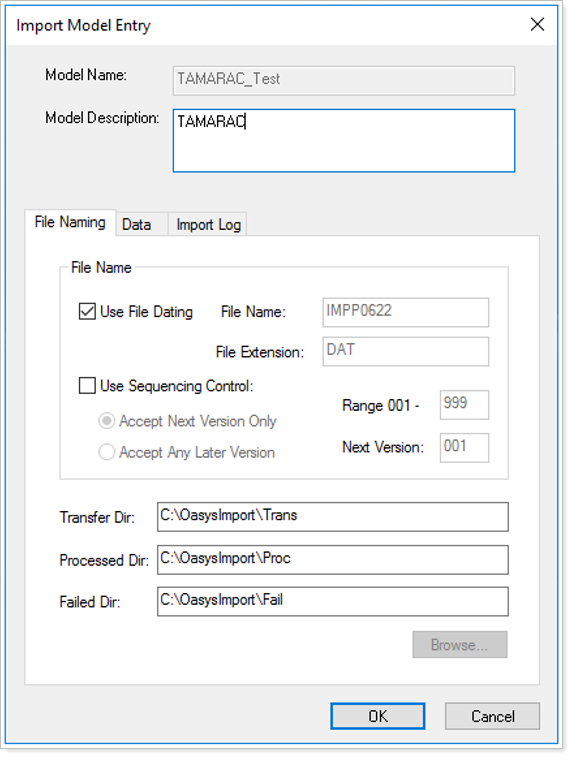
Under File Naming, configure the following settings:
-
Under Data, configure the following settings:
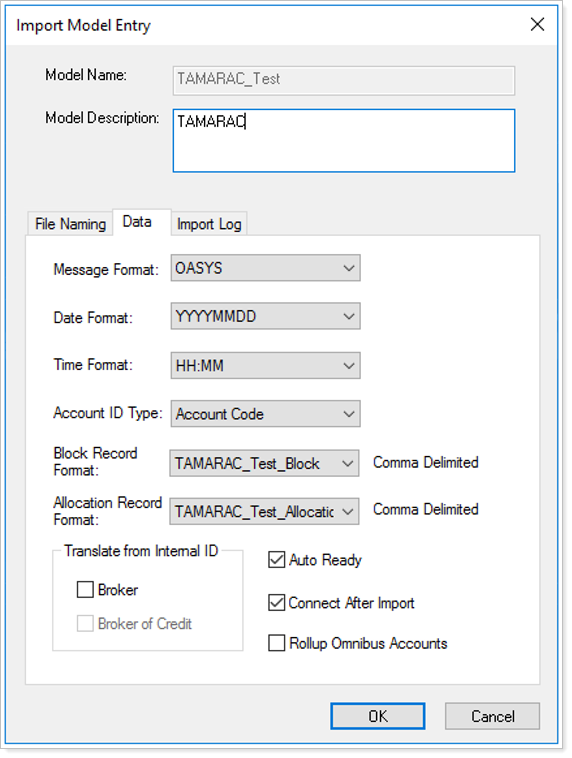
-
Under Import Log, configure the following settings:
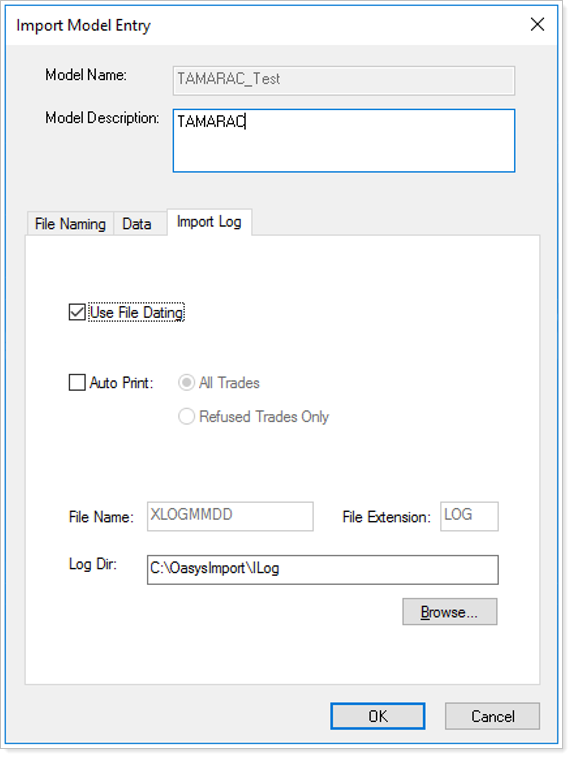
-
Click OK.