
Contents

Introduction
You can choose to keep your contact information in sync between Tamarac CRM and Advisor View. This integration allows you to keep your client’s name, date of birth, and email address seamlessly in sync and reduces potential errors.
Client integration allows you to single sign-on from Tamarac CRM to Advisor View. You can choose to single sign-on to the client record in Advisor View or directly access the client portal.

Edit Contact Name & Date of Birth
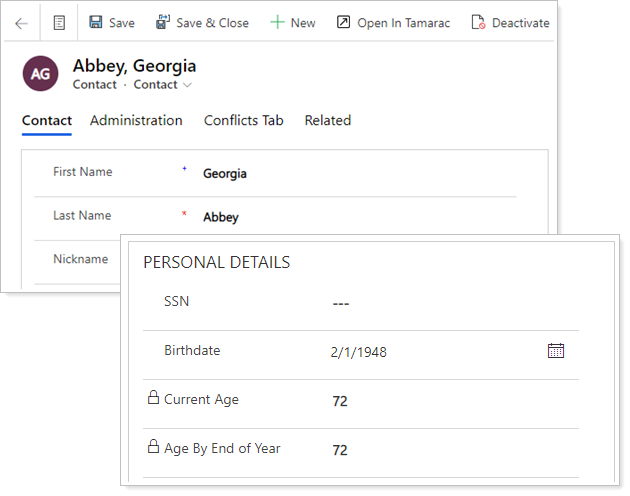
If you have enabled Client integration, you can update client information in either Tamarac CRM or Advisor View and the change will immediately update the other system. Your contacts must be linked between the systems to use the bi-directional integration.
The bi-directional name integration includes the following fields:
-
First Name
-
Middle Name
-
Last Name
-
Birthdate
Edit Contact Email Address
When a contact’s email address changes, there are often many places you have to update that information. With this integration, email address changes propagate between Tamarac CRM and Advisor View seamlessly, so you only have to worry about updating it in one place.
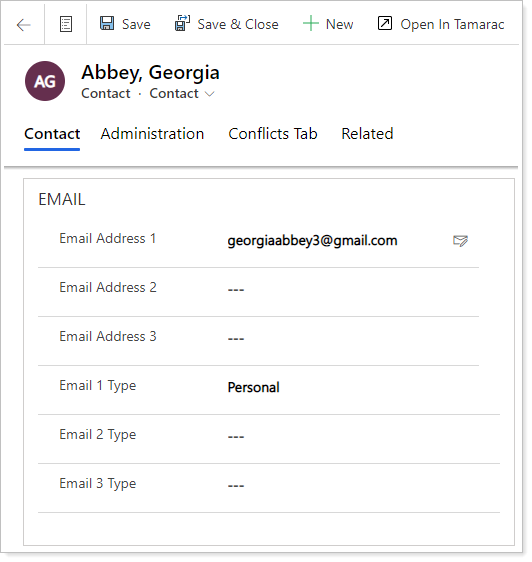
When you edit an email address in Tamarac CRM, some extra confirmation is required before the change occurs in Advisor View, because Advisor View uses email addresses for client portal login access.
Note
Whenever you change a client’s email address in Advisor View, the client receives an automatic email notifying them of the change. For information on changing a client’s email address in Advisor View, see Creating a Client: The Client Profile Panel.
After changing the email address in Tamarac CRM, the updated email will sync to Advisor View where it need to be confirmed or rejected.
To confirm or reject the email address change:
-
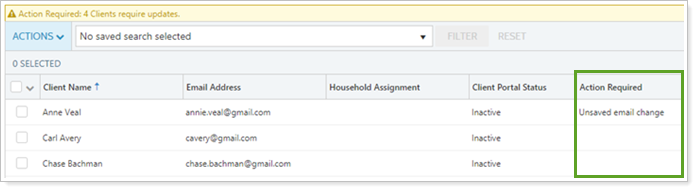
In Advisor View, under Accounts, click Clients/Client Portals.
-
In the Action Required column, find the message that says, Unsaved email change.
-
Open the corresponding client record.
-
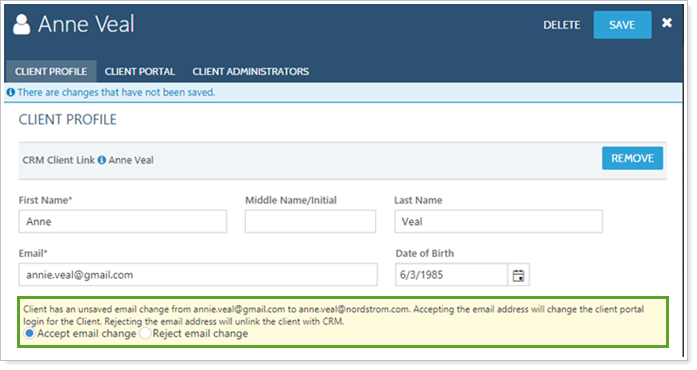
In the Client Profile panel, look for the Client has an unsaved email change… alert.
-
Select either Accept email change or Reject email change.
If accepted, the email address in the client record changes in Advisor View to match Tamarac CRM.
If rejected, the client record is un-linked from Tamarac CRM because linking is based on matching email addresses. The email address remains unchanged in Advisor View.
-
Click Save. When you change a client’s email address in Advisor View, the change in the corresponding linked Tamarac CRM contact is updated automatically.
Manage Household Assignment
The integration between Tamarac CRM and Advisor View allows you to maximize efficiency and minimize errors by syncing the Household assignment for your clients.
When you change the Household assignment, approval is required before the change occurs because Household assignment impacts what accounts clients see in their client portals.
Household assignments can only be updated in Advisor View from Tamarac CRM when the client is created.
To confirm or reject the Household change:
-
In Advisor View, under Accounts, click Clients/Client Portals.
-
In the Action Required column, find the message that says, Unsaved household change.
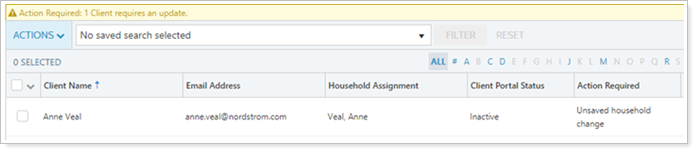
-
Open the corresponding client record.
-
In the Client Profile panel, look for the Client has an unsaved household change… alert.
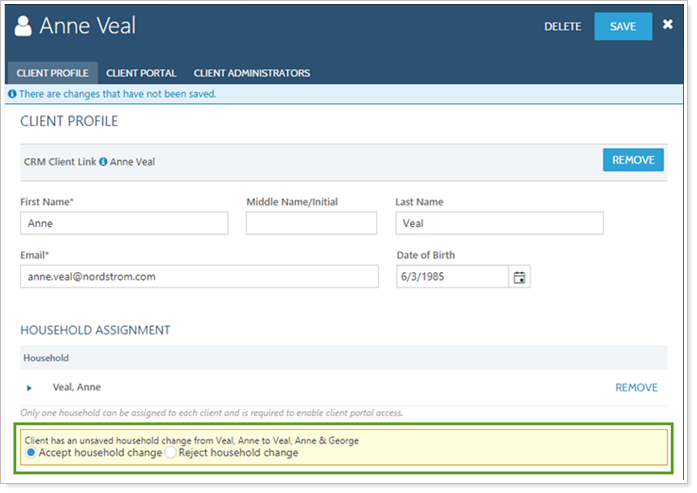
5. Select either Accept household change or Reject household change.
If accepted, the Household changes in Advisor View to match Tamarac CRM.
If rejected, the Household assignment in Advisor View remains unchanged. There is no impact to client linking if the Household change is rejected.
When you move a client from one linked Household to another in Advisor View, the change in the corresponding linked Tamarac CRM client is updated automatically.
Contextual Single Sign-On
From Tamarac CRM, you can easily access more information about your clients in Advisor View. You can see more information about the client record in Advisor View using the Open in Tamarac button. This button takes you straight to the corresponding Advisor View record.
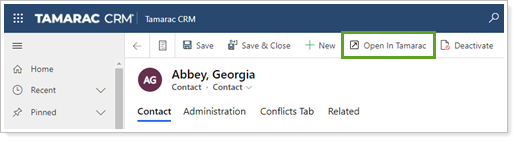
When opening a client in Advisor View using Open in Tamarac, Advisor View automatically opens to the Client page and uses contextual linking to display the most relevant data:
-
If a contact is linked between Tamarac CRM and Advisor View, the client page opens with the panel open for the selected contact in a new tab.
-
If the contact is not linked between Tamarac CRM and Advisor View, the client page in Advisor View opens in a new tab.